Editor Interface
This article explains the components of the Editor Interface used to manage Projects and State Machines.
Overview
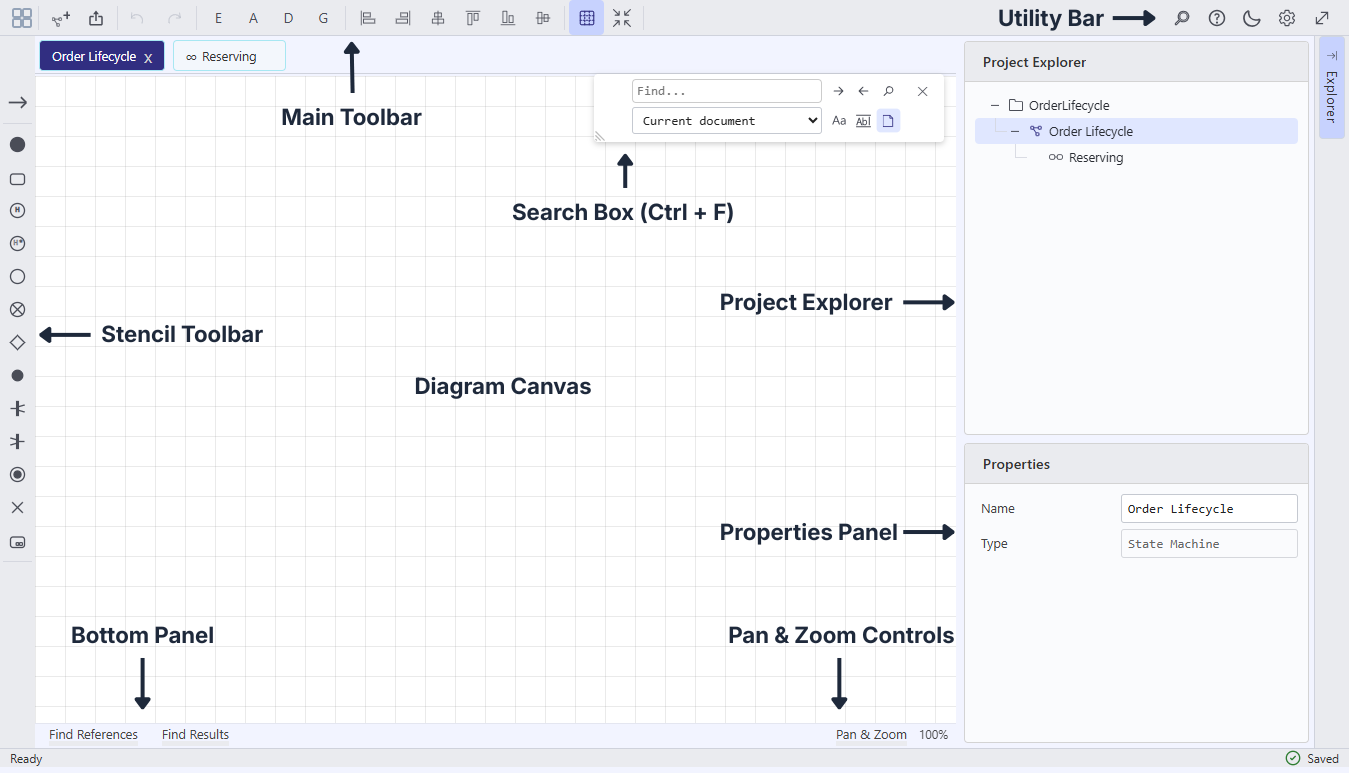
Main Toolbar
Anchored at the top left of the workspace, the Main Toolbar groups primary document and canvas controls into distinct functional clusters:
-
File & Navigation:
Return to the Dashboard, create a New State Machine, or open the Export dialog. -
History:
Standard Undo (Ctrl + Z) and Redo (Ctrl + Y) controls for canvas actions. -
Behavior Shortcuts:
Quick-access buttons to open theState Machine Behaviors Windowwith the relevant tab pre-selected:E(Events),A(Actions),D(DoActivity Actions), andG(Guards). -
Canvas Tools:
Element alignment and distribution tools, a toggle for theCanvas Background Grid, and aTrim Canvasaction to automatically fit canvas bounds to diagram content.
Utility Bar
Located at the top right of the workspace, the Utility Bar provides quick access to search, documentation, preference windows, and display modes:
-
Find:
Opens the Search Box (or press Ctrl + F). -
Help and Support:
Opens the Help and Support Window. -
Theme Toggle:
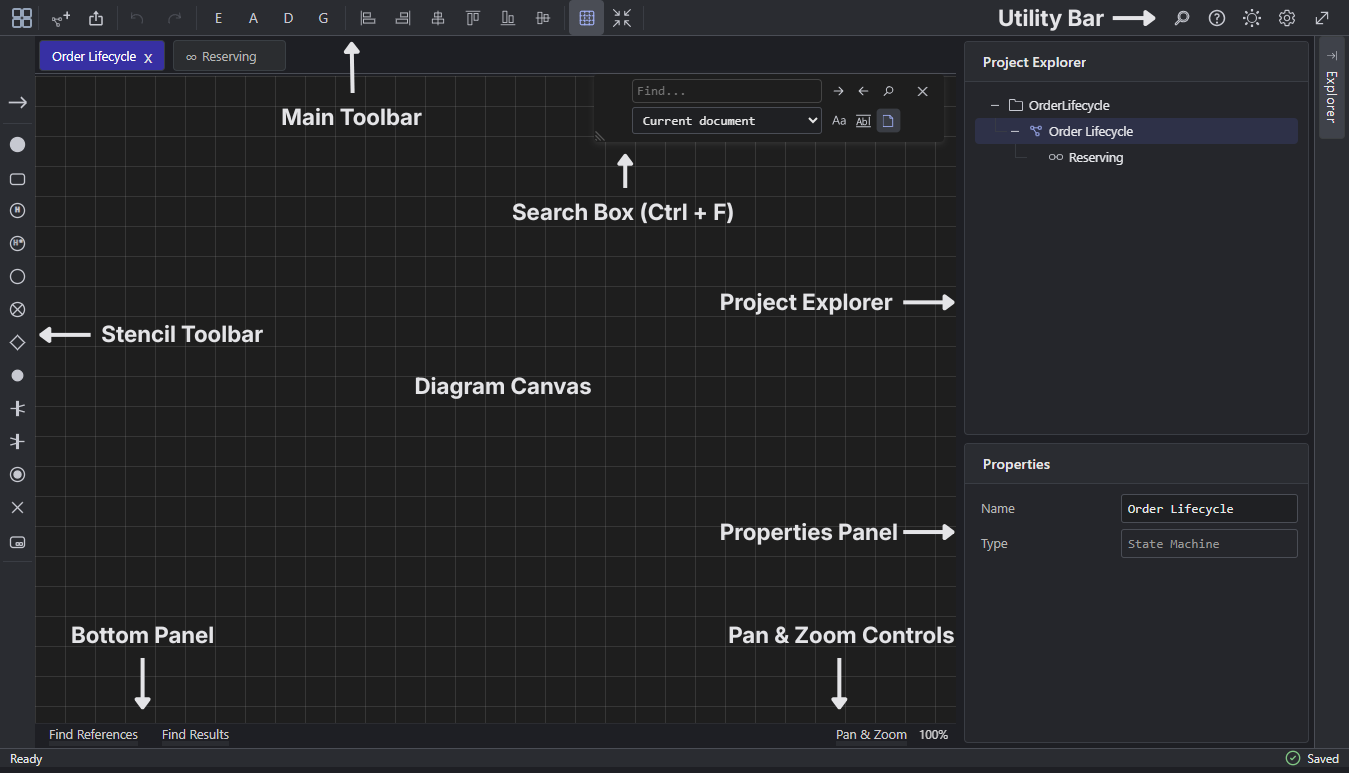
Switches the interface between Light and Dark themes. -
Settings:
Opens the Settings Window to configure application preferences and reassign the Workspace folder. -
Full Screen:
Toggles full screen mode for the editor interface.
Search Box
The Search Box can be opened from the Utility Bar or by pressing Ctrl + F. It enables searching across active or open documents, or the entire Project.
-
Search Scope:
Query elements within the active document, open documents, or the full Project scope. -
Find All Results:
Displays matches in theFind Results Listwithin the Bottom Panel. Selecting any result navigates directly to that element on the canvas.
Stencil Toolbar
Located on the left side of the workspace, the Stencil Toolbar provides stencils for elements used to model State Machines.
-
Adding Vertices:
Click a Vertex stencil in the toolbar, then click inside the Diagram Canvas or a target State Region. -
Drawing Transitions:
Click the Transition stencil, press and hold the left mouse button on the source Vertex edge, drag to the target Vertex edge, and release.
Project Explorer and Properties Panel
The Project Explorer and Properties Panel are housed in a single collapsible sidebar on the right side of the workspace.
Project Explorer
Displays the hierarchical project tree with the Project as the root node, containing State Machine and Submachine document nodes. Double-clicking any document node opens it on the Diagram Canvas. Right-clicking a node opens its context menu:
-
Project Node:
New State Machine,Delete -
State Machine Node:
Open,New Submachine,Duplicate,Delete -
Submachine Node:
Open,Duplicate,Delete
Properties Panel
Provides a contextual inspector for viewing and editing attributes of the current Diagram Canvas selection or Project Explorer item.
Diagram Canvas
The Diagram Canvas is the primary design surface for constructing and laying out State Machines and Submachines.
-
Infinite Canvas:
Automatically expands and updates layout whenever elements are moved, resized, or scrolled out of view. -
Background Grid:
Visual grid lines can be toggled on or off directly from the Main Toolbar.
Pan and Zoom Controls
Located at the bottom right of the Diagram Canvas, click the Pan & Zoom tab header to expand or collapse the controls.
-
Zooming:
Adjust Canvas scale using the zoom buttons, typing a percentage into the input box, or scrolling the mouse wheel over the mini-map. Quick actions includeZoom to FitandReset Zoom(100%). -
Mini-Map Panning:
The mini-map provides a complete overview of the canvas. Drag the viewport rectangle within the mini-map to pan around the design area.
Bottom Panel
Located at the base of the Diagram Canvas, the Bottom Panel displays search results and behavior usage references. Click the tab header to expand or collapse the panel.
-
Find Results List:
Displays matching items found via the Search Box. Selecting an item navigates directly to that context element on the Diagram Canvas. -
Behavior References List:
Lists all locations where specific Events, Actions, DoActivity Actions, or Guards are referenced across the root State Machine. Selecting an item navigates directly to that context element on the Diagram Canvas.